
Drag & drop, paste (Ctrl+V) or click to choose images
Supports JPG, PNG, WEBP and AVIF
Up to 6 files at a time · Files are deleted after processing
Convert to
Compress (WEBP)How to use
- 1
Add your image files
Drag them into the box, paste with Ctrl+V or click to browse. Up to 6 files at a time, 50 MB each.
- 2
Click “Compress images”
Each file is processed on our server, usually in a few seconds.
- 3
Download the results
Save files one by one, or use “Download all” to get them in one go.
Key benefits
- •Smaller files, with savings of 18–66% on our test photos
- •Works with JPG, PNG, WEBP and AVIF images
- •Strips EXIF and GPS metadata for extra privacy
Common uses
- •Speed up web pages and improve Core Web Vitals scores
- •Fit images under email, chat or upload size limits
- •Save storage space for product photos and image libraries
What you can expect to save
Results depend on how compressed the image already is. Photos saved at high quality have the most to give. A large JPG already at quality 75 keeps most of its size, and we'd rather show you that than quote a best case. Each image kept its original pixel dimensions:
| Image | Before | After (WEBP 75) | Saved |
|---|---|---|---|
| 4,000 × 3,000 JPG, quality 75 | 1.69 MB | 1.20 MB | 29% |
| 4,000 × 3,000 JPG, quality 75 | 2.45 MB | 2.01 MB | 18% |
| 1,600 × 1,200 JPG, quality 90 | 820 KB | 440 KB | 46% |
| Coffee JPG, quality 90 | 70 KB | 29 KB | 58% |
| Hubble star field JPG, quality 90 | 253 KB | 86 KB | 66% |
| Text screenshot PNG | 227 KB | 115 KB | 49% |
| Opaque logo PNG | 80 KB | 5 KB | 94% |
| Transparent logo PNG | 42 KB | 17 KB | 59% |
Your output is always WEBP
This is the main thing to know. A JPG goes in and a .webp comes out, whatever the input. That's ideal for websites, but a form that accepts only JPG will reject it. In that case, convert the result with WEBP to JPG, or resize the original instead, which keeps its format.
Hitting a target like “under 200 KB”
There's no target-size setting. If the file is still too big after compressing, reduce its dimensions: halving the width and height leaves a quarter of the pixels, which usually matters far more than quality settings. Our 4,000-pixel-wide photo was 2.45 MB; at 1,600 pixels wide and compressed, it was 420 KB. Few web pages need more than that, so resize first and then compress.
Frequently asked questions
Does compressing an image reduce its quality?
Technically yes, because WEBP at quality 75 is lossy. In practice the difference isn't visible at normal viewing size, which is why it's the usual trade-off for web images.
What format is the compressed file?
WEBP. Every modern browser supports it, and it compresses better than JPG or PNG. If you need a PNG afterwards, use our WEBP to PNG converter.
Why isn't my compressed file smaller?
If the original is already a heavily compressed WEBP or a very small image, there's little left to remove and the result can even be slightly larger. In that case, keep the original.
Does compression change the image dimensions?
No. The width and height in pixels stay the same; only the file size changes.
Helpful articles
Read the blog →
How to Optimize Images for Your Website: 6 Steps That Matter
Six steps that make the biggest difference to how fast your images load, in order of impact, with real numbers.
How to Reduce Image File Size Without Losing Quality
We took a 516 KB photo down to 22.5 KB. The four steps that shrink images the most, and the order to do them in.
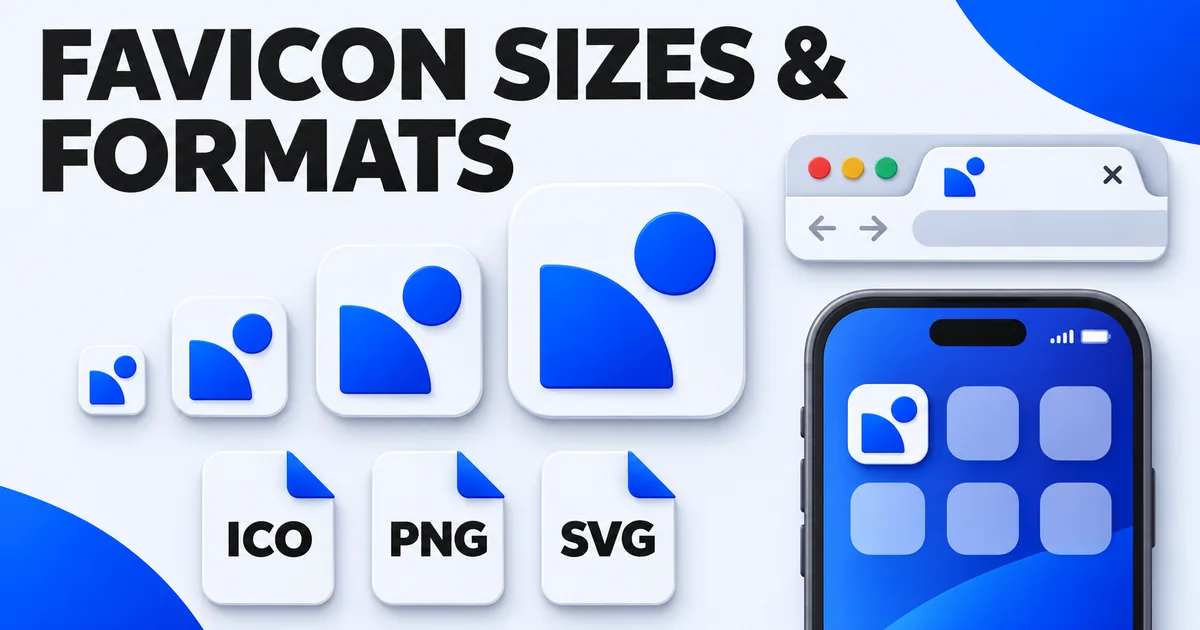
Favicon Size and Format Guide: ICO, PNG or SVG?
The favicon sizes every site needs, why favicon.ico still matters, and when an SVG favicon is the better choice.
Related tools
All tools →Remove metadata (EXIF)
Remove GPS location, camera details and other hidden metadata from photos before you share them.
RESIZECrop & resize images
Drag to crop right on the image, then resize to the exact width and height you need.
REMOVE BGPNGRemove image background
Remove the background from photos automatically with AI and get a transparent PNG.
WATERMARKAdd a watermark to images
Add a text or logo watermark to several images at once, placed exactly where you want it, right in your browser.