How to Add a Favicon to Your Website: HTML, WordPress & More

Adding a favicon takes two steps: upload the icon files to your site, then tell browsers where they are with a few lines of HTML. Website builders and frameworks hide one or both steps behind a setting or a folder convention, which is where most of the confusion comes from.
This guide gives you the HTML for a hand-built site, then the steps for the most common platforms. If you don't have the icon files yet, create them first: how to make a favicon walks through it, and the favicon size and format guide explains which sizes you need.
The favicon HTML to copy
Upload your files to the root folder of your site, the same folder as your home page's index.html, then add these lines inside the <head> of every page:
<link rel="icon" href="/favicon.ico" sizes="32x32"><link rel="icon" href="/icon.svg" type="image/svg+xml"><link rel="apple-touch-icon" href="/apple-touch-icon.png"><link rel="manifest" href="/site.webmanifest">
What each line does:
- favicon.ico is the fallback every browser understands. It's marked
sizes="32x32"rather thansizes="any"on purpose: when both an ICO and an SVG are listed, Chrome can pick the ICO if it's markedany, and you'd lose the sharper SVG. - icon.svg is optional. Leave this line out if you don't have an SVG version of your logo.
- apple-touch-icon.png (180 × 180 pixels) is used when someone adds your site to an iPhone or iPad home screen.
- site.webmanifest lists the 192 and 512-pixel icons that Android uses for its home screen and for installing your site as an app.
If you only have a favicon.ico, the first line alone is enough. You can drop the sizes attribute in that case.
The web manifest file
Create a file called site.webmanifest in your root folder with this content, adjusting the name and file paths:
{ "name": "Your Site", "icons": [ { "src": "/icon-192.png", "sizes": "192x192", "type": "image/png" }, { "src": "/icon-512.png", "sizes": "512x512", "type": "image/png" } ] }
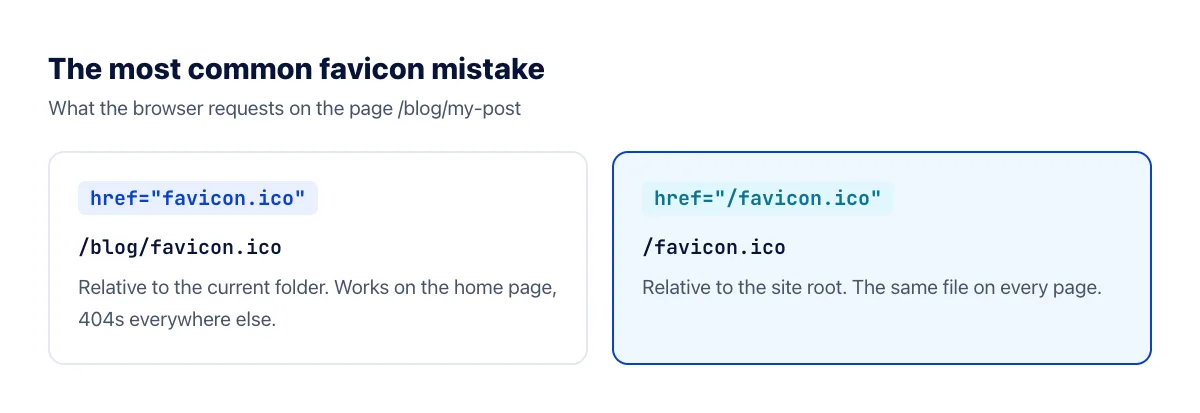
Always start the path with a slash
This is the mistake behind most "favicon only shows on the home page" problems. Without the leading slash, the browser looks for the file relative to the current page's folder:
WordPress
- Prepare a square image, at least 512 × 512 pixels.
- In a classic theme, go to Appearance → Customize → Site Identity and click Select site icon.
- In a block theme, open the Site Editor, select the Site Logo block and turn on Use as site icon.
- Upload the image, crop it if asked, and publish.
WordPress generates the smaller sizes and adds the HTML for you, including the apple-touch-icon. Don't also add favicon tags by hand in your theme's header, or browsers may get conflicting icons.
Shopify
- Go to Online Store → Themes and click Customize on your live theme.
- Open Theme settings (the gear icon) and find the Logo or Favicon section, depending on your theme.
- Upload a square PNG under Favicon image and save.
Shopify themes typically scale the image down to 32 × 32 pixels, so a simple, bold symbol works better than a detailed logo.
Wix
In your site's dashboard, go to Settings → Favicon and upload a square image. Wix only shows custom favicons on sites with a Premium plan and a connected domain; free sites keep the Wix icon.
React with Vite
Put your icon files in the public/ folder. Vite copies everything in it to the root of the built site unchanged. Then edit index.html in the project root: the default template has a line pointing at /vite.svg, which you replace with the favicon HTML above.
Create React App
Replace public/favicon.ico with your own file. The public/index.html template already references it with %PUBLIC_URL%/favicon.ico, so no HTML change is needed. Update public/manifest.json and the 192 and 512-pixel images in the same folder for the home screen icons.
Next.js
With the App Router, put favicon.ico directly in the app/ folder. Next.js detects it and adds the link tag itself. You can add icon.svg or icon.png and apple-icon.png to the same folder, and they're picked up the same way. With the older Pages Router, put the files in public/ and add the link tags in pages/_document.js.
Check that it works
- Open the file directly. Visit
yourdomain.com/favicon.ico. If you get a 404, the file isn't where your HTML says it is. - Use a private window. Browsers cache favicons for a long time, often longer than the page itself. A private window ignores that cache.
- Look at the Network tab. In your browser's developer tools, reload the page and filter by "favicon" or "icon" to see which file is requested and whether it loads.
- Check a subpage too, not only the home page, to rule out the relative-path mistake.
Favicon still not showing?
- The old icon is cached. Change the file name or add a version to the URL, for example
/favicon.ico?v=2, so browsers fetch it again. - A plugin or theme adds its own icon. View the page source and search for
rel="icon". If there are several, remove the extras. - The image isn't square. Browsers squash or pad it, and Google won't use it in search results.
- Google still shows the old one. Search results update on Google's schedule, from a few days to several weeks. Make sure robots.txt doesn't block your icon files.
Frequently asked questions
Do I need the link tag if favicon.ico is in the root folder?
Browsers request /favicon.ico automatically when no icon is declared, so the tab icon will usually appear without it. Add the tag anyway: Google looks for a rel="icon" link on your home page when choosing the icon for search results, and the tag lets you point to your other formats.
Does the favicon need to be on every page?
Put the link tags in the shared header or layout template, so every page has them. Website builders and frameworks do this for you.
Can I use a JPG as a favicon?
Most browsers will show it, but JPG has no transparency and adds blur to small, sharp-edged shapes. Convert it to ICO or PNG instead.
The bottom line
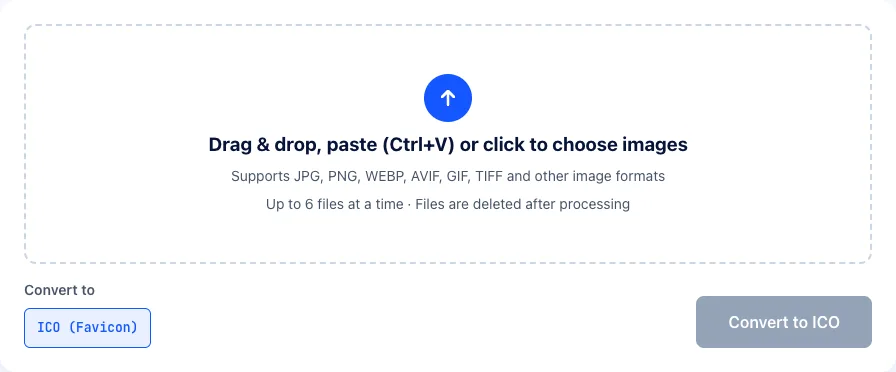
Upload your favicon files to the site root, add the link tags to your page's head with paths that start with a slash, and test in a private window. On WordPress, Shopify, Wix, Vite or Next.js, use the platform's own setting or folder instead of adding tags by hand. If you still need the files, the image to ICO converter creates a multi-size favicon.ico from your logo.