How to Combine Images Into One PDF (Phone or PC)
Job applications, rental agreements, school enrollments, insurance claims: many forms want your documents as a single PDF. What you usually have is a handful of photos taken with your phone. Combining them into one tidy PDF is a small skill that saves a lot of hassle.
Why one PDF instead of several images?
- It's what's asked for. Many forms allow only one file per section.
- The order is preserved. The reader goes from page 1 to the end without guessing which photo comes first.
- It opens everywhere. Every computer and phone can view and print a PDF.
- It's tidier to send. One attachment instead of a dozen separate images.
Step 1: Take clear photos
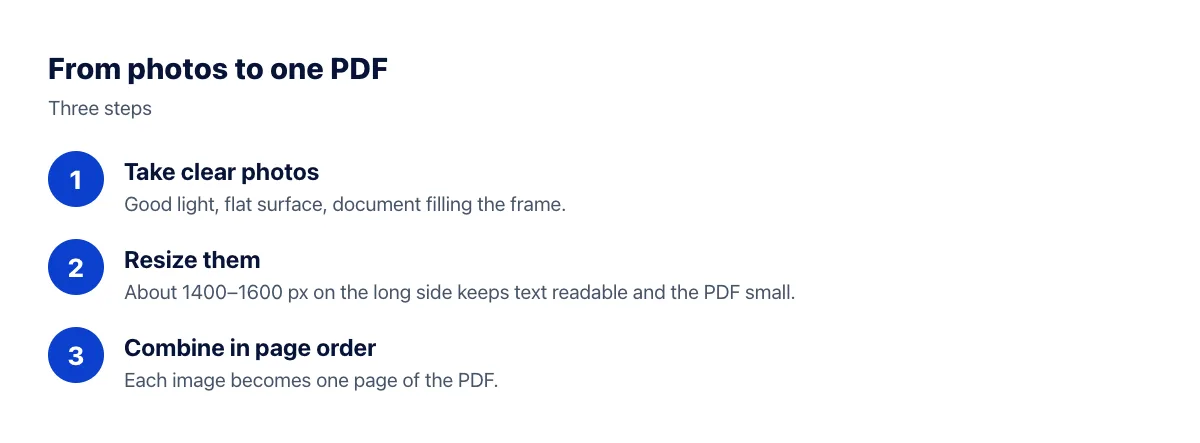
The quality of your PDF depends almost entirely on the photos. Lay each page on a flat, dark surface, shoot in good light, hold the phone parallel to the paper and let the document fill most of the frame. Avoid the flash, which often causes glare on glossy paper.
Step 2: Resize the images
Phone photos are usually 3000–4000 pixels wide and 2–5 MB each. Combine five of those and your PDF can easily exceed 15 MB, too big for many upload forms. Use the image resizer to bring the long side down to about 1400–1600 pixels: text stays easy to read and the files shrink several times over. More tips in How to reduce image file size.
Step 3: Combine the images into a PDF
- Open the merge images to PDF tool.
- Select your images in the page order you want, up to 6 at a time.
- Check the list. If something is out of order, remove that image and add it again.
- Click Merge into PDF and download the file.
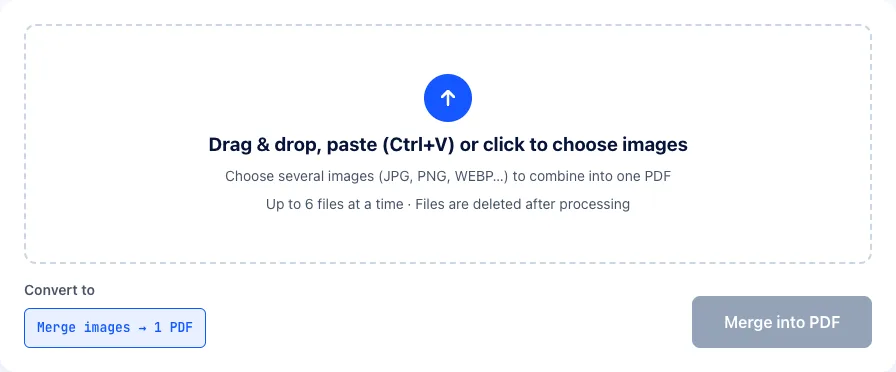
Each image becomes a PDF page with exactly the image's dimensions, so nothing is stretched or cropped. If you have more than 6 pages, create several PDFs or check with the recipient how they'd like to receive them.
Other ways to do it
On Windows
Select the images in File Explorer, right-click and choose Print. Pick Microsoft Print to PDF as the printer, choose a layout, and save. Images are fitted onto standard paper pages, which is handy when a form expects A4 or Letter-sized pages.
On iPhone
Select several photos in Photos → Share → Print. In the print preview, spread two fingers on the first page to open the PDF, then tap Share to save it to Files. Alternatively, use Scan Documents in the Notes or Files app, which straightens and crops pages for you.
On Android
The Google Drive app includes a Scan feature that creates a multi-page PDF directly from your camera, with automatic cropping.
PDF still too big?
If the combined PDF is still over the limit, run it through Compress PDF to shrink the images inside while keeping the layout. Going back to Step 2 and resizing the images further usually works even better. See How to make a PDF smaller to email it.
Common problems
- Pages in the wrong order: name your files 01, 02, 03… before you start, and select them in that order.
- Sideways pages: rotate the photo in your photo app before combining.
- Blurry text: the original photo was shaky or too dark. Compression is rarely the cause; retake the photo.
- iPhone photos won't upload: they may be HEIC files. Convert them with HEIC to JPG first.
Frequently asked questions
Will the pages be A4 or Letter size?
With our tool, each page matches its image exactly, so there's no stretching or white border. If the recipient requires standard paper sizes, crop your photos to a similar shape first (about 1:1.41 for A4, 1:1.29 for Letter), or use the Windows print method above.
Can I mix PNG and JPG images?
Yes. You can select JPG and PNG images in the same batch, and each becomes one page. Convert HEIC photos from an iPhone to JPG first.
Do you keep my documents?
Uploaded images and the resulting PDF are deleted from our server automatically after processing. With sensitive documents, download your PDF straight away and share it only with whoever needs it.
Can I change the page order after creating the PDF?
The simplest fix is to create the PDF again with the images selected in the right order, which takes seconds. If you only have the PDF, a Mac's Preview app lets you drag pages around in the sidebar, and many PDF editors can do the same.
How do I combine more than 6 images?
Create several PDFs of up to 6 pages each. If the recipient needs a single file, the Windows print method and the phone scanning apps described above have no practical page limit.
The bottom line
Shoot clearly, shrink the images, and combine them in the right order. Those three steps give you a light, readable PDF that meets the requirements of almost any online form.