How to Convert HEIC to JPG on Windows 10 and 11 (4 Free Ways)
You plug your iPhone into a Windows PC, copy your photos over, and find a folder full of .HEIC files that Windows won't open. It's one of the most common iPhone-to-PC headaches, and it happens because iPhones have saved photos as HEIC instead of JPG since iOS 11.
HEIC files are about half the size of JPGs, but Windows, many apps and most websites can't read them without help. (For the background, see What is a HEIC file?) Below are four free ways to fix it, from the quickest one-off fix to settings that stop the problem for good.
Method 1: Convert HEIC to JPG online
If you only need a handful of photos converted, for an email, a form or a print shop, an online converter is the fastest option. There's nothing to install, so it also works on a work laptop or a library computer where you can't add software.
- Open the HEIC to JPG converter.
- Drag your
.HEICfiles into the upload box, or click it to choose files. You can convert up to 6 photos at a time. - Click Convert to JPG, wait a few seconds, then download your photos one by one or all at once.
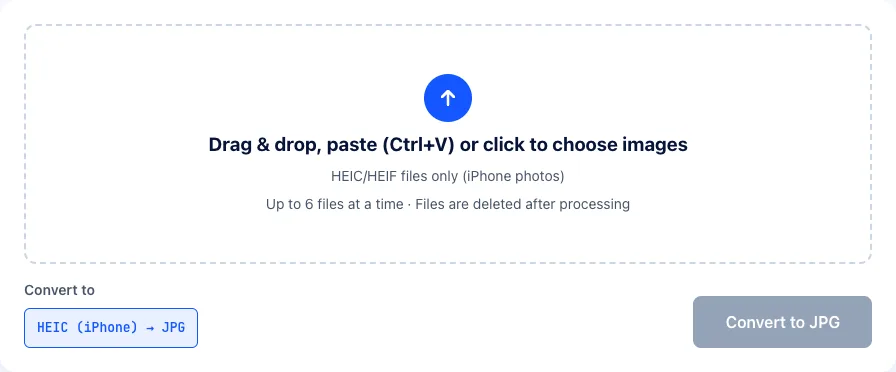
The JPGs are saved at quality 90, which keeps nearly all the detail of the original, and they open everywhere: the Windows Photos app, Word, PowerPoint, email and any upload form. Both your uploads and the converted files are deleted from our server automatically after processing.
Method 2: Install the HEIF extensions, then save as JPG with Paint
If HEIC files land on your PC regularly, it's worth teaching Windows to read them. Microsoft offers the support as two add-ons in the Microsoft Store:
- Open the Microsoft Store, search for HEIF Image Extensions and install it. It's free.
- Search for HEVC Video Extensions and install that too. It's a small one-time purchase, although some PCs already include a free copy from the manufacturer.
- Restart the Photos app. HEIC photos now open like any other image, and File Explorer shows their thumbnails.
With the extensions installed, you can turn any HEIC file into a JPG without other software: right-click the file, choose Open with → Paint, then go to File → Save as → JPEG picture. This is fine for a few photos but slow for a big batch, since Paint handles one file at a time.
Keep in mind that the extensions only help your PC. If you send a HEIC file to someone else or upload it to a website, they may still be unable to open it, so convert it to JPG first.
Method 3: Download your photos from iCloud as JPG
If your photos sync to iCloud, you can skip HEIC entirely when downloading them. Sign in at iCloud.com, open Photos, select the photos you want, and look at the download button's options. Choosing Most Compatible instead of Unmodified Original gives you JPG files rather than HEIC.
This is handy when you're working on a PC that isn't yours, or when you want a specific set of photos from months ago without plugging in your phone.
Method 4: Let your iPhone convert photos automatically
Two settings on the iPhone itself can prevent HEIC files from reaching your PC in the first place.
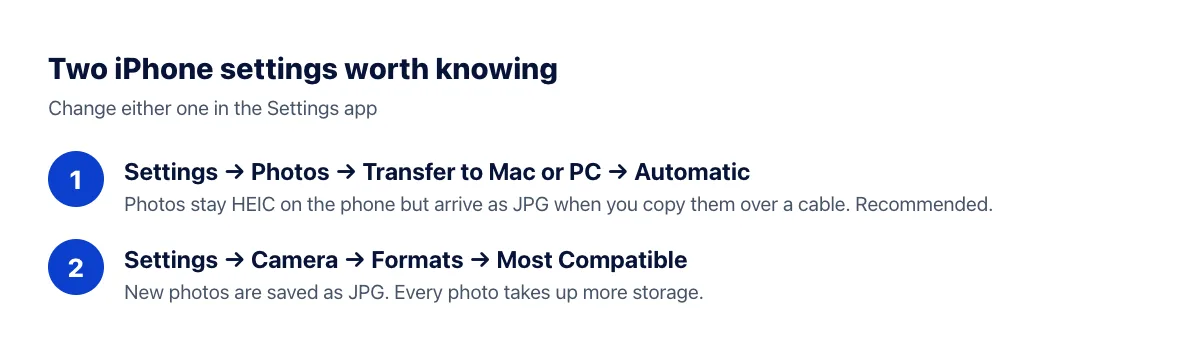
Convert to JPG when copying to a computer
Go to Settings → Photos, scroll to Transfer to Mac or PC, and choose Automatic. When you copy photos to Windows over a USB cable, your iPhone converts them to JPG on the fly. The originals on your phone remain HEIC, so you keep the storage savings. This setting only affects cable transfers, not photos downloaded from iCloud.
Shoot in JPG instead of HEIC
Go to Settings → Camera → Formats and choose Most Compatible. From then on, new photos are saved as JPG. The trade-off is that each photo takes up roughly twice the space, and some camera features on recent iPhones, such as the highest-resolution modes, require the High Efficiency format.
Frequently asked questions
Will converting to JPG make my photos look worse?
Not in any way you'd notice when viewing them normally. A JPG at quality 90 keeps almost all of the detail. If you might print a photo very large or edit it heavily later, keep the original HEIC file alongside the JPG.
What about Live Photos?
Converting a Live Photo gives you a still JPG of the key frame. The motion part is stored in a separate .mov video file and isn't included in the JPG.
The JPG is still too large to upload. What now?
iPhone photos are large: usually 4032×3024 pixels, or bigger on recent models. Most upload forms don't need anywhere near that. Use the image resizer to scale photos down, or the image compressor to cut the file size further.
Can I convert hundreds of HEIC files at once?
Our online tool converts up to 6 files per batch, which is ideal for a few photos. For a whole camera roll, the Automatic transfer setting in Method 4 is the easiest route: set it once and copy your photos over a cable again, and they'll all arrive as JPG.
Summary
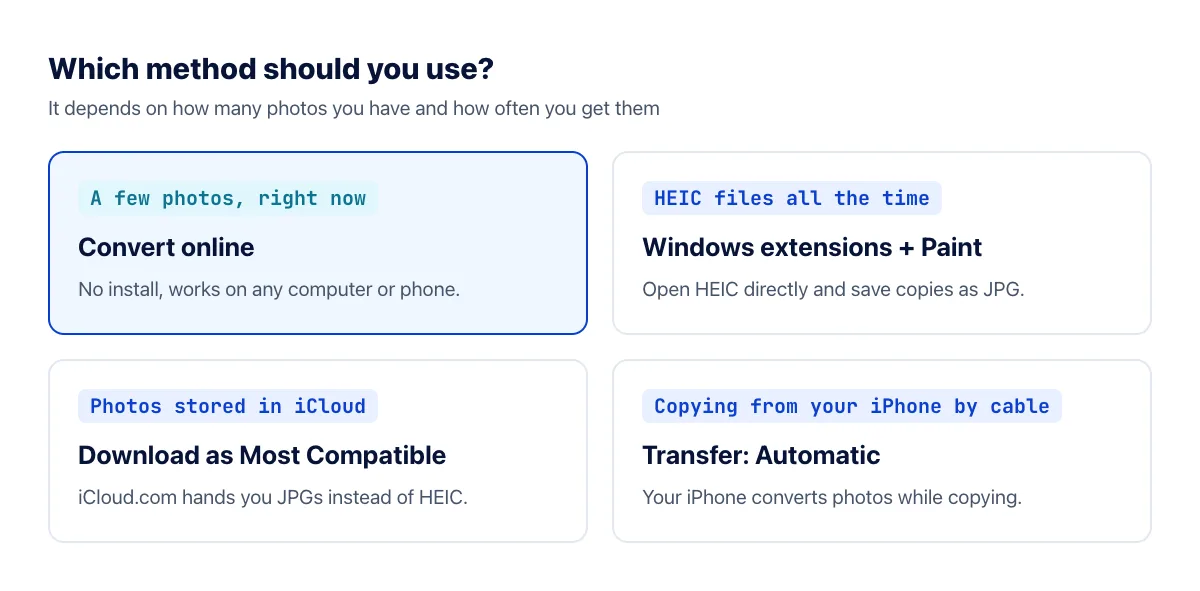
Need a few photos right now? Convert them online. Get HEIC files all the time? Install the Windows extensions and use Paint. Working from iCloud? Download as Most Compatible. Copying from your iPhone by cable? Set transfers to Automatic. All four methods are free or nearly free, so pick the one that fits how you work.