
How to Remove Location Data From Photos Before You Share Them

You photograph an old bike in your driveway and post it on a local marketplace. A stranger downloads the picture, opens its details and finds GPS coordinates accurate to a few meters. That scenario is entirely real: if your camera has permission to use your location, every photo stores its coordinates in hidden EXIF data.
This guide shows how to check whether a photo contains location data, how to remove it before you share, and how to stop your camera recording it at all. For background on what else is hidden in your photos, see What is EXIF data?
When should you worry?
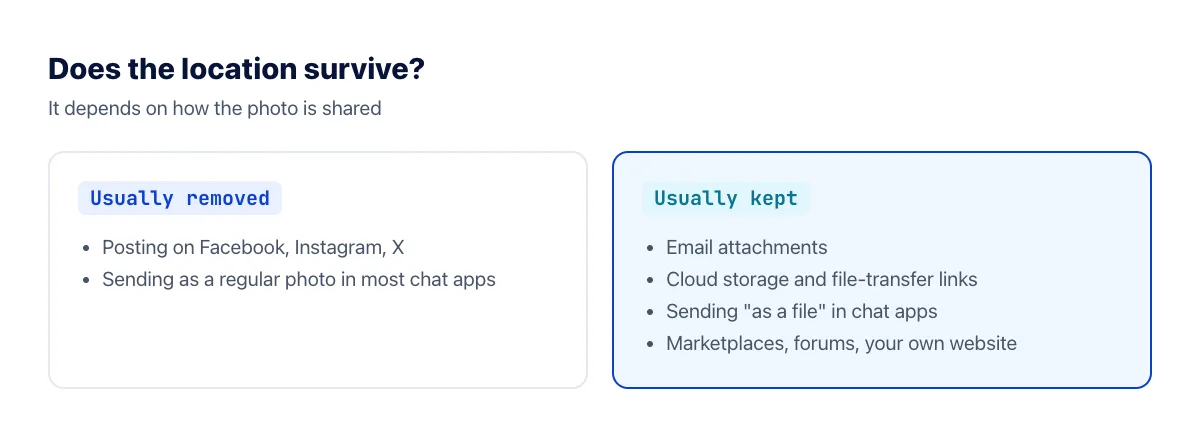
Many big social networks strip metadata when you post, but plenty of sharing methods keep the original file untouched. Be most careful with photos of things you're selling, your new home, your children at home or at school, and photos you send to people you've only just met online.
Step 1: Check whether a photo has location data
- iPhone: open the photo in Photos and swipe up. If you see a small map, the photo has a location.
- Android (Google Photos): open the photo and swipe up to see its details; a location appears with a map.
- Windows: right-click the file → Properties → Details, and look for a GPS section.
- Mac: open the photo in Preview → Tools → Show Inspector, and look for a GPS tab.
Step 2: Remove the location
On any device: use an EXIF remover
- Open the Remove EXIF tool. It works in any browser, including on your phone.
- Upload the photos you want to share, up to 6 at a time.
- Click Remove EXIF and download the results. Each photo keeps its format and looks the same, but its hidden data, including location, camera model and capture time, is gone.
- Share the downloaded copies instead of the originals.

On iPhone: turn off location when sharing
In Photos, select the photo → tap Share → tap Options at the top → switch off Location. This applies to that share only. Recent versions of iOS also let you adjust or remove a photo's location from its info panel.
On Windows
Right-click the photo → Properties → Details → click Remove Properties and Personal Information at the bottom. You can create a copy with all possible properties removed, or remove specific fields such as GPS from the original.
On Android
In Google Photos, open the photo, swipe up to the details and use the edit option next to the location to remove it. Options vary between phone makers and app versions, so if you can't find it, the online tool works on any Android phone.
Step 3: Stop saving location in the first place
- iPhone: Settings → Privacy & Security → Location Services → Camera → Never.
- Android: open the Camera app → Settings → turn off Location tags or Save location (the name depends on the manufacturer).
The trade-off: your photo app can no longer sort pictures by place or show them on a map. If you like those features, keep location on and remove it only when sharing.
Don't forget what's in the picture
Removing GPS data only deals with hidden information. The photo itself can still give a lot away: a house number, a license plate, a street sign, a school uniform, a letter with your address on the table. Take a second look before you post, and crop or cover anything sensitive.
Frequently asked questions
Do messaging apps keep the location?
When you send a photo the normal way, most messaging apps recompress it and often drop metadata. When you send it as a file or document, the original is usually delivered untouched, location included. If in doubt, remove EXIF before sending anything sensitive.
Can removed location data be recovered?
Not from the cleaned copy; the data is gone from that file. Your original photo in your phone's library keeps its location if you only shared the cleaned copy.
Do photos taken inside social or chat apps include location?
Photos taken with the built-in camera of a social or messaging app often don't write GPS data the way your phone's main camera does, but it depends on the app and version. Check a test photo using Step 1 to be sure.
Should I remove EXIF from photos on my own website?
Yes, it's a good habit. Many website platforms and themes keep the original file when you upload. Besides privacy, a photo without EXIF data is also slightly smaller.
Does AirDrop send the location?
Yes. AirDrop transfers the original photo, location included, unless you tap Options in the Share sheet and switch Location off before sending. That's worth remembering when you AirDrop photos to people you don't know well.
The bottom line
Check whether a photo has a location, remove EXIF before you send photos to strangers or post them publicly, and consider turning off location in your camera. These three small habits protect your home address better than most people realize.