What Is EXIF Data? What Your Photos Reveal About You

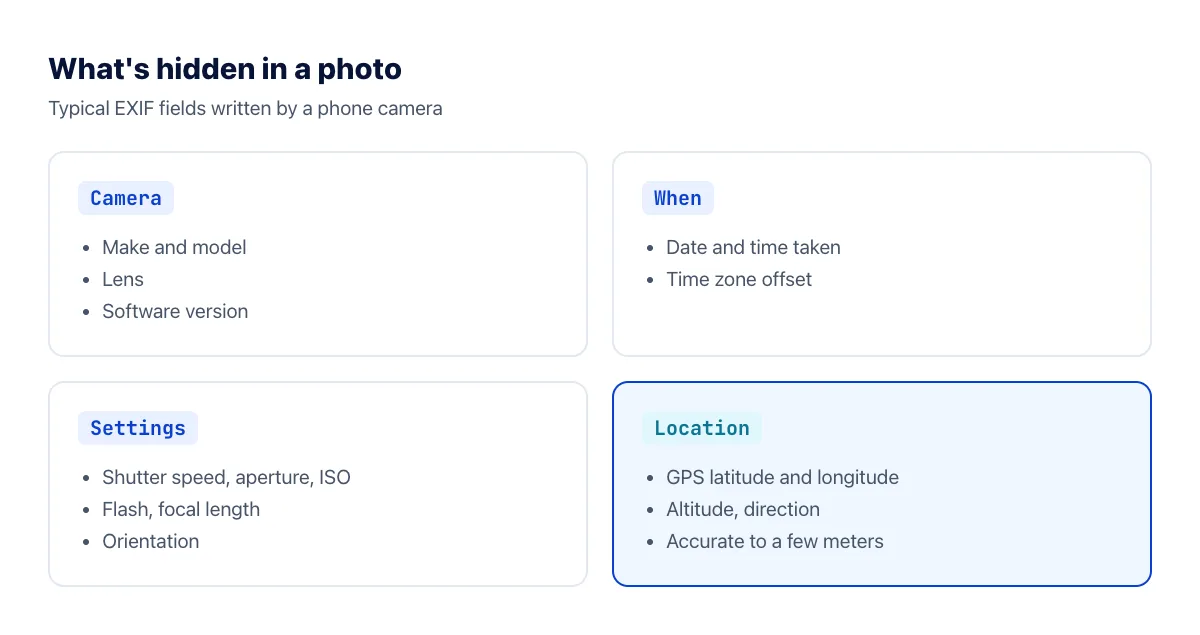
Every time you take a photo with a phone or digital camera, the file stores more than the picture. Alongside the image sits a block of hidden information called EXIF data. Most of the time it's harmless and even useful. But in some situations it reveals more than you'd want, above all the exact place the photo was taken.
What is EXIF data?
EXIF (Exchangeable Image File Format) is a standard for storing metadata, or "data about data", inside image files. It's most common in JPG, HEIC and TIFF files. Your camera writes it automatically at the moment you take the picture; you don't have to do anything.
What is EXIF used for?
- Organizing photos. Your phone's photo app uses EXIF dates and locations to sort pictures, build trip albums and show photos on a map.
- Showing photos the right way up. The Orientation field records whether you held the camera upright or sideways.
- Learning photography. Shutter speed, aperture and ISO show how a great shot was taken.
- Proving authorship. Photographers use original EXIF data to show a picture is theirs.
The privacy risk
The biggest concern is GPS coordinates. If your camera app has permission to use your location, which is the default on many phones, every photo you take at home records your home's coordinates, accurate to within a few meters. Anyone with the original file can open it in an EXIF viewer and see the spot on a map.
Most large social networks, such as Facebook, Instagram and X, generally strip location data when you post a photo. But plenty of other ways of sharing keep the original file intact: email attachments, cloud storage links, file-transfer services, messaging apps when you send a photo as a file or document, online marketplaces and forums that don't process uploads, and your own website.
Photos of items you're selling, your new home, or your children at home or school are the cases worth being most careful with.
How to view a photo's EXIF data
- Windows: right-click the photo → Properties → Details tab.
- Mac: open the photo in Preview → Tools → Show Inspector → the (i) tab.
- iPhone: open the photo in the Photos app and swipe up, or tap the (i) button.
- Android (Google Photos): open the photo and swipe up to see the details.
How to remove EXIF data
Online, on any device
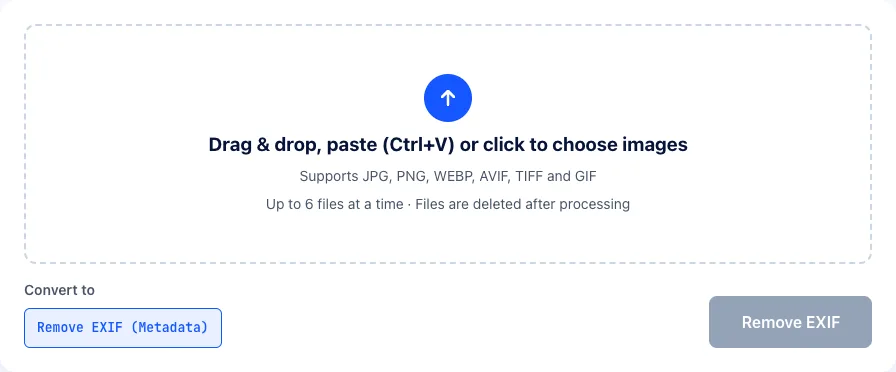
- Open the Remove EXIF tool.
- Upload your photos: JPG, PNG, WebP, TIFF and more, up to 6 at a time.
- Click Remove EXIF and download the cleaned images. Each one keeps its original format; only the hidden data is gone.
Before stripping the data, the tool rotates each image according to its Orientation field, so a portrait photo won't end up sideways once that field is removed. The image is re-saved at a high quality setting (92 for JPG), so you won't see a difference.
Stop saving your location in the first place
- iPhone: Settings → Privacy & Security → Location Services → Camera → Never.
- Android: open the Camera app → Settings → turn off Location tags or Save location (the name varies by manufacturer).
- When sharing on iPhone: in the Share sheet, tap Options at the top and switch off Location for that share.
Should you remove EXIF from every photo?
No. For photos in your own library, EXIF makes them easier to search and organize. Remove it before sharing photos with strangers or posting them publicly, especially photos taken at home, at your children's school or at work.
Frequently asked questions
Do screenshots have EXIF data?
Usually very little or none. A screenshot doesn't come from the camera, so it has no camera settings or GPS location, at most basic details such as the date and dimensions.
Does removing EXIF make photos smaller?
Slightly. EXIF data is typically a few KB to a few dozen KB, depending on the camera. If you want smaller files, resizing or compressing is far more effective; removing EXIF is mainly about privacy.
Do photo editing apps remove EXIF?
It depends on the app. Many keep the original EXIF when saving an edited photo, some remove part of it, and some add their own details. Don't assume an edited photo is clean; check it before sharing.
Can I remove EXIF from a whole folder of photos?
Our online tool handles up to 6 photos per batch, which suits the photos you're about to share. For a whole folder on Windows, select all the files in File Explorer, right-click → Properties → Details → Remove Properties and Personal Information, and create cleaned copies of all of them at once.
The bottom line
EXIF data records your camera, the time, the settings and often your location. It's useful in your own library but worth removing before you share photos publicly. For a step-by-step guide focused on location, read how to remove location data from photos.