PNG vs JPG: Which Image Format Should You Use?
PNG and JPG are the two image formats you run into most often, and choosing the wrong one has real costs. Save a photo as PNG and you get a file many times larger than it needs to be. Save a logo as JPG and you lose its transparent background and get fuzzy edges around the text.
Rather than repeat the usual rules of thumb, we tested both formats on two typical images, a photo and a logo, using the exact settings our converters use. Here's what we found, and how to pick the right format every time.
The key difference: lossy vs lossless
JPG (also written JPEG) uses lossy compression. It throws away fine detail that the eye is unlikely to notice, especially subtle variations in color, and that's how it gets files so small. The trade-off is that every save loses a little information, and hard edges such as text and lines can pick up faint smudges called compression artifacts.
PNG uses lossless compression. Every pixel is stored exactly, so the image you open is identical to the one you saved, no matter how many times you re-save it. PNG also supports transparency: pixels can be fully or partly see-through, which is how a logo can sit cleanly on any background color. JPG has no transparency at all.
Test 1: a photo
We started with a 600×400 photo of a coffee cup on a wooden table (by Rachel Michetti, released as CC0). Photos like this are full of gradual color changes and fine texture, which is exactly what JPG was designed for.
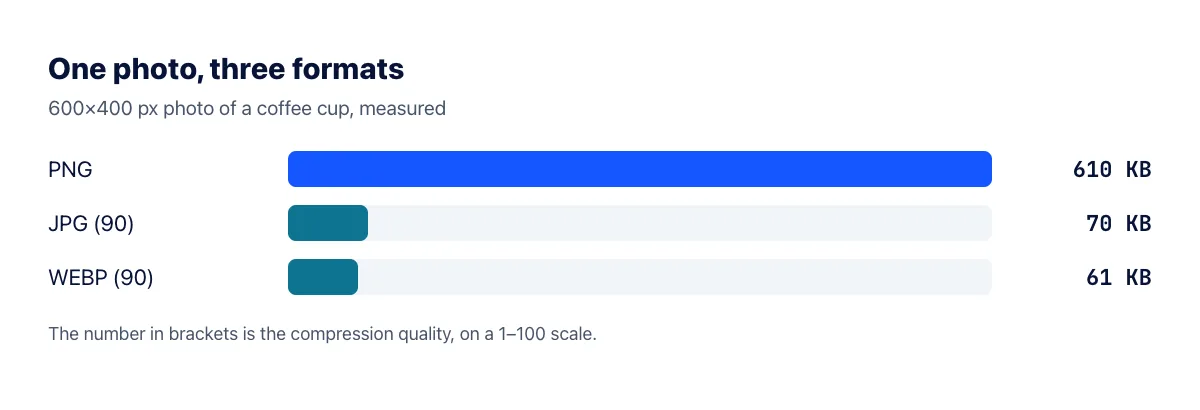
The difference is dramatic. As a PNG, the photo weighed 610 KB. As a JPG at quality 90, it came to 70 KB, nearly nine times smaller, and side by side on screen the two are practically impossible to tell apart. WEBP at the same quality was smaller still, at 61 KB.
This is why you should almost never store photos as PNG. Lossless compression can't do much with the random noise and texture in a real photo, so the file stays huge. If you've been sent a photo as a PNG, converting it to JPG is one of the easiest ways to make it email-friendly.
Test 2: a logo with a transparent background
Next we used our own logo: 2056×765 pixels, flat colors, crisp text and a transparent background. This is the kind of image PNG was made for.
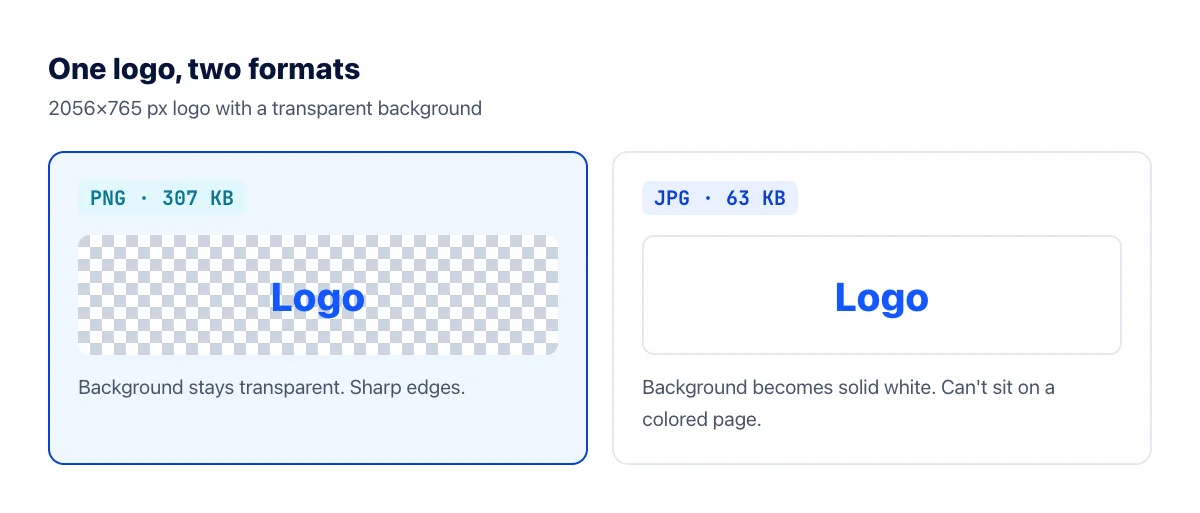
Saved as PNG with our converter's settings, the logo came to 307 KB. As a JPG at quality 90, it dropped to 63 KB, so JPG still wins on size. But the cost is obvious: JPG can't store transparency, so the see-through background was filled with solid white. Put that JPG on a dark website header or a colored slide and you get an ugly white box around the logo.
Size isn't the whole story, either. Around sharp edges like letters, JPG compression produces faint halos and blotches that are noticeable on logos, screenshots and diagrams, even when they're invisible in photos.
When to use JPG
- Photos of any kind: camera and phone pictures, product shots, portraits, landscapes.
- Images you'll email or upload to forms, where a small file size matters and transparency doesn't.
- Anywhere compatibility is critical. Every device, app and website accepts JPG.
When to use PNG
- Logos, icons and graphics with a transparent background. JPG simply can't do this.
- Screenshots, diagrams and images with text, where JPG's artifacts would blur sharp edges.
- Images you'll keep editing. PNG doesn't lose quality each time you save, so it's a safe working format.
What about WEBP?
For images on a website, there's a third option worth considering. WEBP supports both lossy and lossless compression as well as transparency, and every major browser displays it. In our photo test it beat JPG on size, and it can keep a logo's transparent background, which JPG can't. If you're optimizing a site, converting with PNG to WEBP or image to WEBP is often the best of both worlds. For files you'll send to other people, though, JPG and PNG are still the safer choice, because some older software can't open WEBP.
How to convert between PNG and JPG
- To shrink a photo that was saved as PNG, use PNG to JPG. Any transparent areas will turn white.
- To get a lossless copy of a JPG, for example before editing it, use JPG to PNG. Note that this won't restore detail the JPG already lost, and the PNG will usually be much larger.
- Drop up to 6 files into the converter, click convert and download the results. Files are deleted from our server automatically after processing.
The short version
Use JPG for photos: in our test it made the same photo nearly nine times smaller with no visible difference. Use PNG for logos, graphics, screenshots and anything that needs transparency, where JPG would add a white background and smudge the edges. And for images on your own website, consider WEBP, which can do both jobs in a smaller file.