What Is WebP? WebP vs JPG and PNG, Tested
WebP is an image format Google introduced in 2010 with one goal: make images on the web smaller than JPG and PNG without a visible drop in quality. Smaller images mean faster pages, less mobile data for your visitors and better scores in Google's page speed tests.
You'll find plenty of articles quoting Google's own figures. We wanted our own numbers, so we saved five photos and a logo in each format using the exact settings our converters use, and measured the results. Here's what WebP really saves, where it works, and when you should keep using JPG or PNG.
How is WebP different from JPG and PNG?
A WebP file can use either of two kinds of compression. Lossy WebP works like JPG: it discards detail your eye is unlikely to miss. Lossless WebP works like PNG: every pixel is kept exactly. On top of that, WebP supports transparency and animation, two things JPG can't do at all.
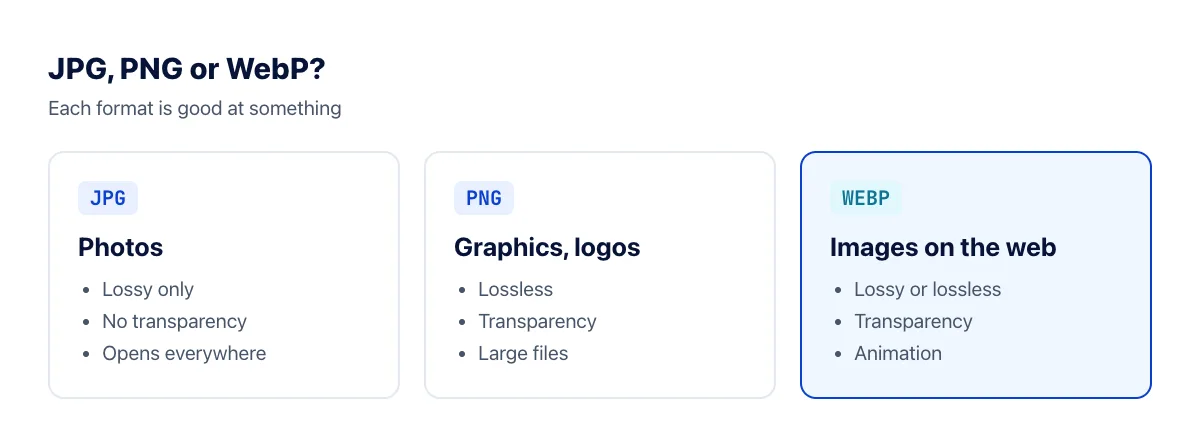
In other words, WebP can stand in for JPG (photos), PNG (graphics with transparency) and even GIF (simple animations). When Google announced it, they reported that lossy WebP files were 25–34% smaller than JPGs of comparable quality, and lossless WebP files about 26% smaller than PNGs.
Our test: how much smaller is WebP?
We used five photos: a coffee cup, a cat, an astronaut portrait, a deep-space image from the Hubble telescope and a rocket launch, all public domain or CC0, ranging from 451×300 to 1000×872 pixels. Each was saved as PNG, JPG and WebP at two quality settings.
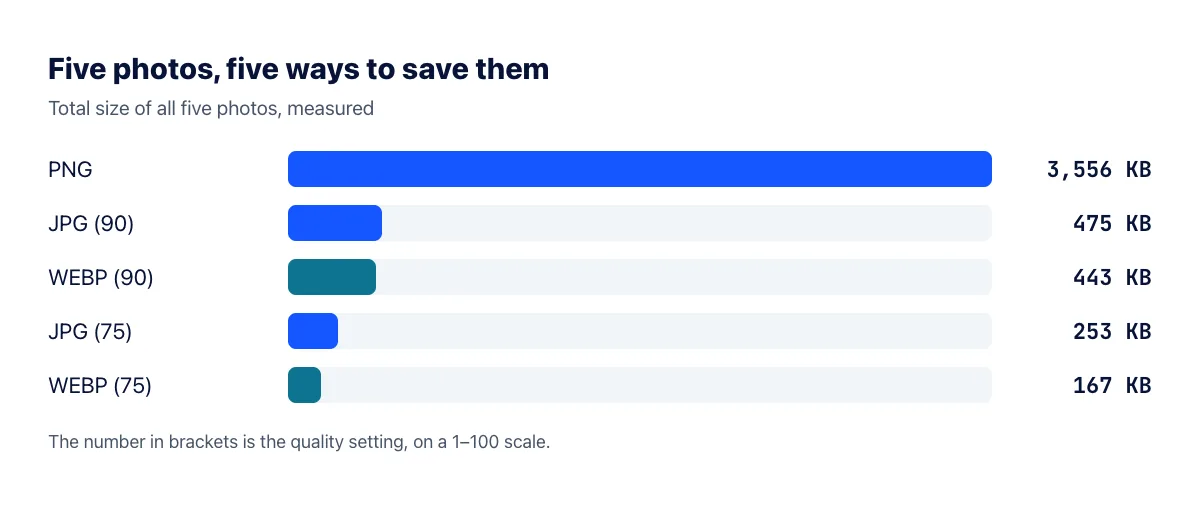
A few things stand out:
- At the same quality number, WebP is about a third smaller. At quality 75, the five WebPs totalled 167 KB against 253 KB for JPG, 34% less. That matches Google's published range almost exactly.
- At very high quality, the gap almost disappears. At quality 90, WebP was only 7% smaller than JPG overall, and on the detailed Hubble image it was actually slightly larger. WebP's advantage comes mostly from how efficiently it handles moderate compression.
- PNG is the wrong choice for photos either way. As PNGs, the same five photos took 3.5 MB, more than 20 times the size of the WebP files at quality 75.
Our image compressor uses WebP at quality 75 for exactly this reason: it's where WebP saves the most for the least visible change. When we zoomed in to 200% on the coffee photo, the WebP version showed slightly less fine texture in the coffee's crema than the original. At normal size we couldn't tell them apart.
What about logos and graphics?
WebP's other strength is transparency. Our 2056×765 logo with a transparent background was 307 KB as a PNG. As a WebP at quality 90 it came to 92 KB, about 70% smaller, and the background stayed transparent. A JPG would have been smaller still, but it would have filled the background with white.
Which browsers and apps support WebP?
Every major browser displays WebP today: Chrome, Edge, Firefox, Opera and Safari (since Safari 14 on macOS Big Sur and iOS 14). That covers virtually everyone browsing the web. Platforms such as WordPress (since version 5.8), Shopify and the big image CDNs accept and serve WebP too.
Desktop software is more mixed. Windows 10 and 11, macOS and recent versions of Photoshop can open WebP, but older photo editors, office software, printers and many upload forms still only accept JPG and PNG. That's the main reason not to convert everything you own to WebP.
When to use WebP
- Images on your website or blog. Images are usually the heaviest part of a page, so switching to WebP makes pages load faster, especially on mobile.
- Product images with a transparent background. WebP gives you transparency at a fraction of PNG's file size.
- Simple animations. Animated WebP is usually much smaller than the same GIF and isn't limited to 256 colors.
- Improving Core Web Vitals. The large image at the top of a page often decides your Largest Contentful Paint (LCP) score. A lighter image helps.
When to stick with JPG or PNG
- Images you email or send to other people. You don't know what software they use, and JPG opens everywhere.
- Uploads to official forms, job portals and print services. Most of them only accept JPG, PNG or PDF.
- Your original photos. Keep high-quality originals and export WebP copies for the web. Each lossy save discards more detail.
How to convert images to WebP
- Open the image to WebP converter, or PNG to WebP for images with a transparent background.
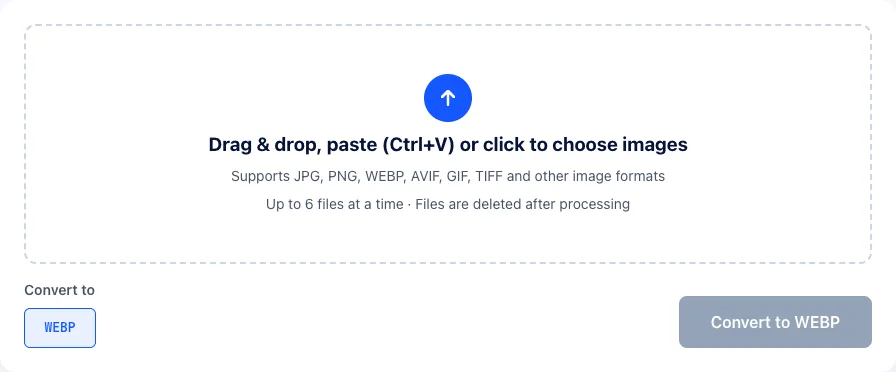
- Drag your images into the upload box, or paste a screenshot with Ctrl+V. You can convert up to 6 at a time.
- Click Convert to WEBP and download the results. Files are deleted from our server automatically after processing.
Need to go the other way, for example when someone sends you a WebP your software can't open? Use WebP to JPG or WebP to PNG. And if you want to squeeze images further for modern browsers, read What is AVIF?
Tips for using WebP on a website
- Resize images to the size they're actually displayed at before converting. A 4000-pixel photo shown in an 800-pixel column wastes most of its bytes, WebP or not.
- Always set
widthandheighton your image tags so the page doesn't jump around as images load. - If you still need to support very old browsers, use a
<picture>element with WebP as the main source and JPG as the fallback.
The bottom line
WebP is the sensible default for images on the web. In our test it was about a third smaller than JPG at the same quality setting, it kept a logo's transparency at 70% less than PNG, and every major browser supports it. For images you send, print or upload to forms, JPG and PNG are still the safer bet.